One inbox for everything
If Momentum-AI has a room where the day actually happens, it’s Conversations: every message, from every channel, in one stream. If someone else answers enquiries in your business, share this page with them — for them, this screen is the job.
The old reality: an enquiry could reach you seven different ways, and every one was another app to check, another place a customer could sit ignored for two days. The new reality: texts, emails, Instagram, Facebook, WhatsApp, web chat and the transcript of every AI-handled call, one inbox, newest at the top. Nothing rots in a corner. (If a channel you use isn’t showing up here, connect it first.)
Reading the room
Section titled “Reading the room”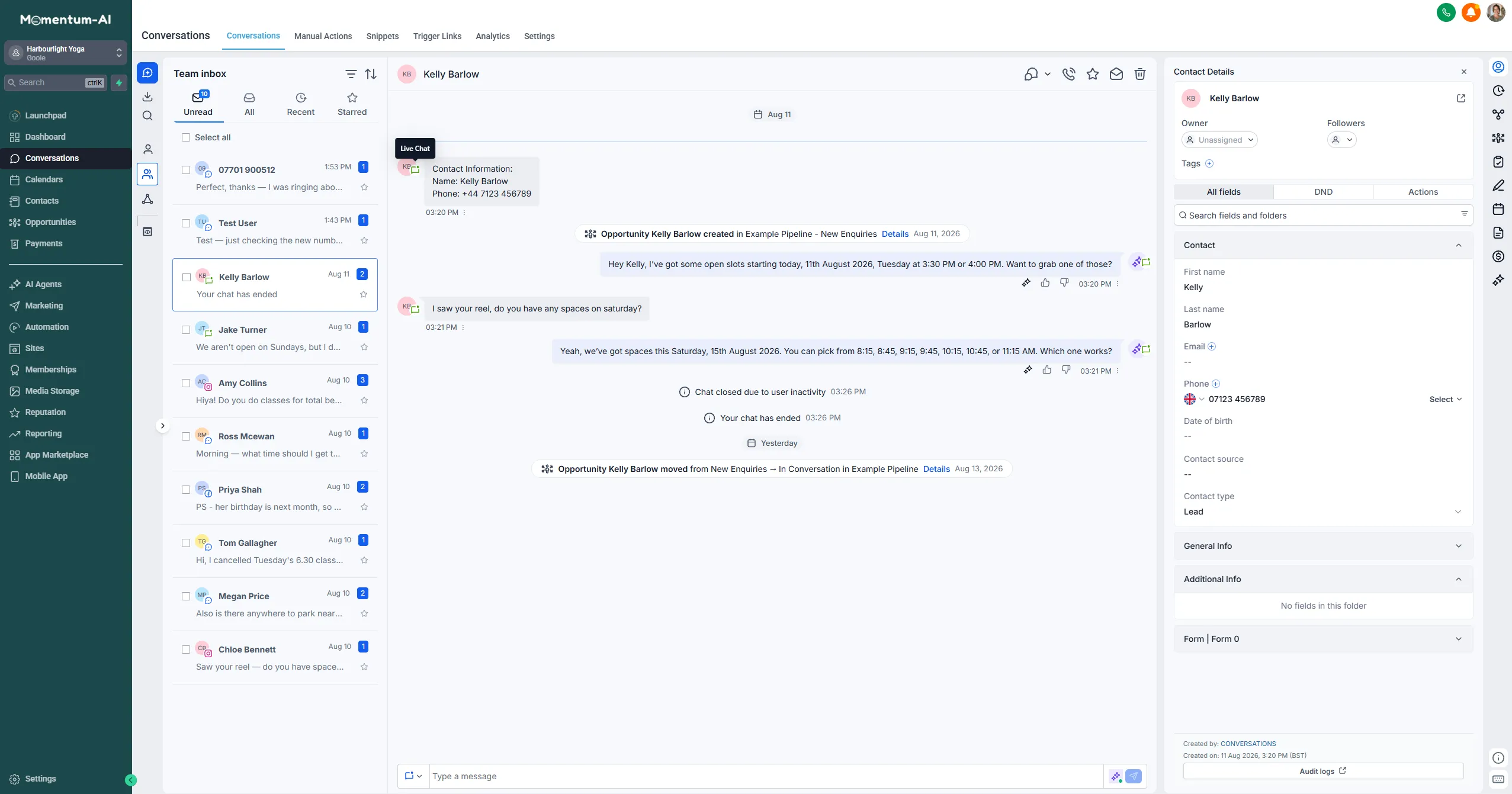
- Two views. Unread is what still needs eyes; All is everything. Start your check in Unread.
- Every thread wears its channel. Each conversation shows who it’s with, a channel icon (live chat, Instagram, text, email…) and the latest message.
- One thread, whole story. Opening a conversation gives you the full history, even when it hops channels — someone who messaged on Instagram last month and texted today is still one thread.
Many of these conversations are already handled. Your Conversation AI can take an enquiry from first question to booked appointment without you touching it — you’ll see the whole exchange, with the appointment confirmation, sitting in the thread.
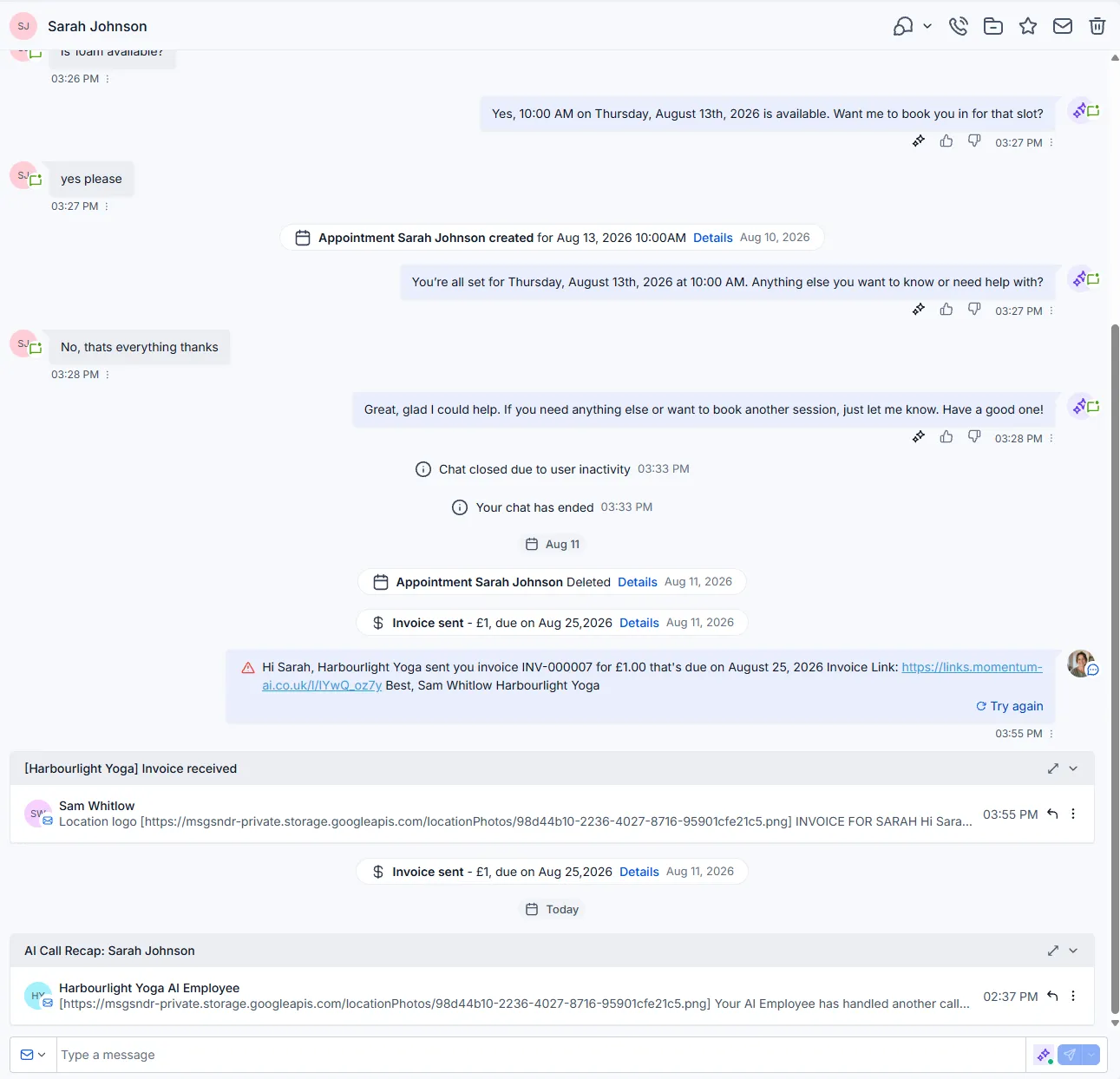
Replying — on any channel
Section titled “Replying — on any channel”When you want in, just reply.
-
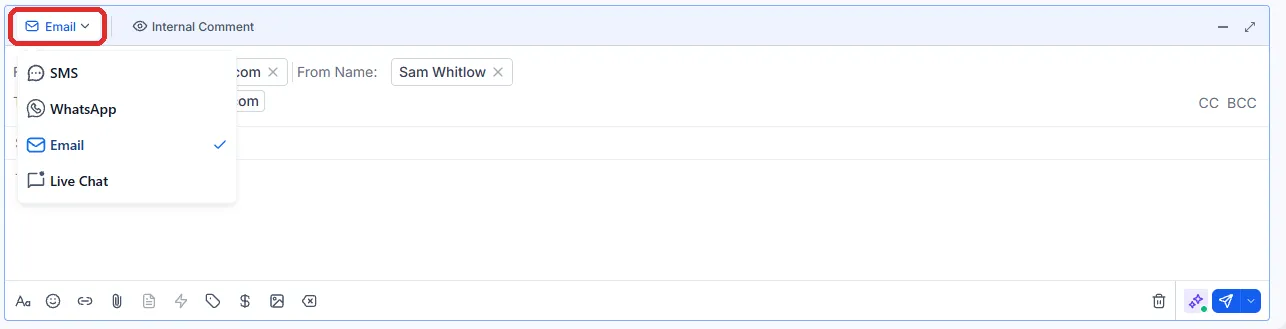
Open the conversation and type in the reply box. By default your message goes back out on the channel the customer used.
-
To move the conversation somewhere else, use the channel picker on the reply box and choose SMS, WhatsApp, Email or Live Chat. Useful when a live-chat visitor has given you their number and the conversation should carry on by text.
Pausing the AI on one conversation
Section titled “Pausing the AI on one conversation”If you’re taking a conversation over properly, snooze the AI so you’re not both typing:
-
In the thread, open the AI Bot popover — it names the bot currently active on this conversation.
-
Switch it to Inactive.
-
Set when it should come back: Reactivate bot after a number of minutes, hours or days — for example, 24 hours.
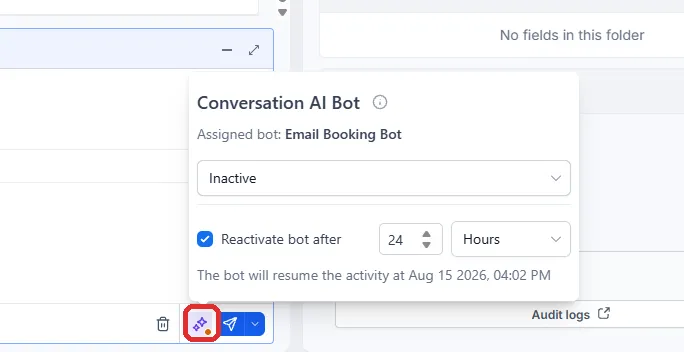
You drive; it waits. This pauses the AI on this one conversation only — everywhere else it keeps working.
The human job in here
Section titled “The human job in here”Two things:
- Skim the threads the AI handled. Is it getting things right? Takes seconds each.
- Clear the ones marked for human attention — complaints, and anything the AI wasn’t sure of. That’s the deal that makes the whole setup trustworthy: flagged conversations get a human, fast.
That’s the room where conversations happen. Next: the calendar those conversations are all trying to reach.