Set up Reviews AI
The last member of your AI team plays the longest game. Everything else you’ve switched on wins you this week’s customers; this one wins you next year’s.
Do the search your customers do: your trade, your town. Two businesses come up — one with a couple of hundred recent reviews, one with thirty from a while back. Everything else being equal, the decision’s made before either website gets a click. Reviews are the currency of local search, and there’s no shortcut: you need a steady stream of them, forever.
The problem was never willingness. Your happy customers would leave you a review. The problem is the ask: you feel awkward asking face to face, you forget, and the moment passes. Reviews AI turns the ask into a system — and systems don’t get embarrassed or forget.
1. Build the review-request workflow
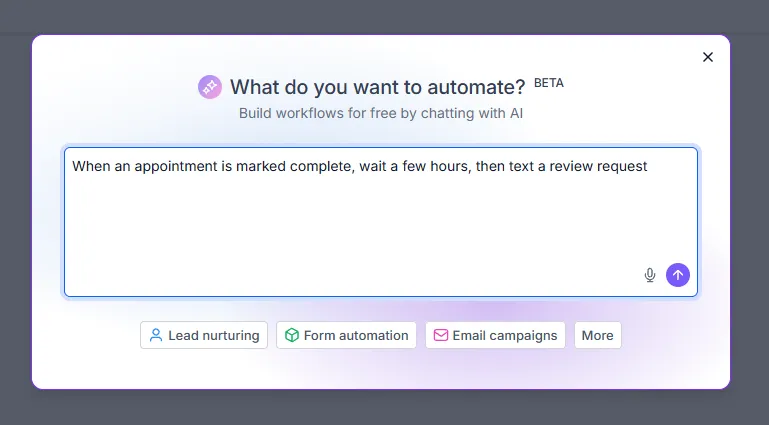
Section titled “1. Build the review-request workflow”You’re going to build this by describing it. Go to Automation and use the AI builder — tell it what you want in plain English:
When an appointment is marked complete, wait a few hours, then text the customer a review request with a direct link to our Google profile.
It lays the steps out for you — appointment status: Completed → Wait → Send Review Request — and you check its work.
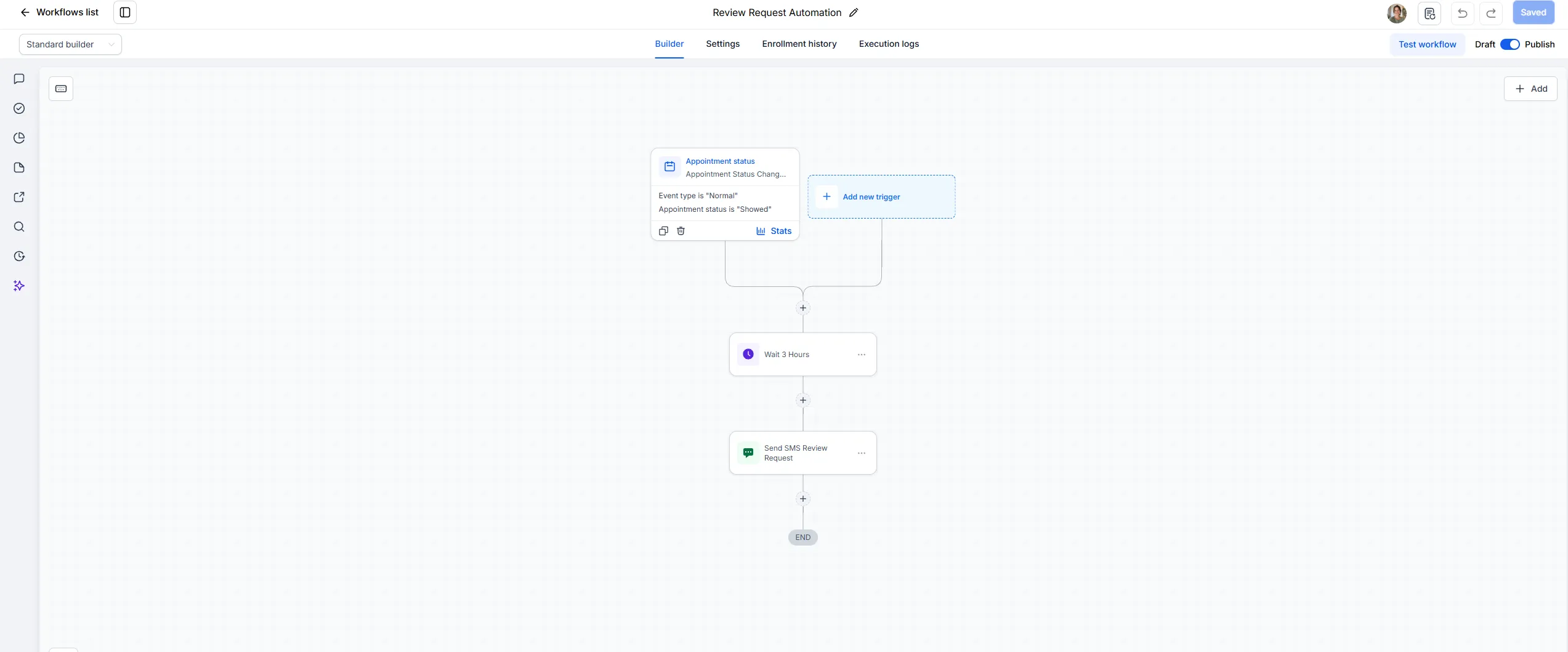
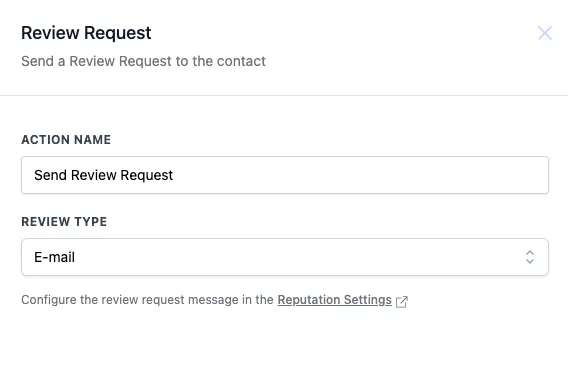
That timing is the sweet spot: the experience is still fresh, and the direct link removes every step between “sure, happy to” and it actually happening. If you’d rather the request went by email, that’s one setting inside the Review Request step.
Write the message in your voice
Section titled “Write the message in your voice”Edit the request message before you finish. Resist the urge to grovel or to bribe — “It genuinely helps a small business like ours” is honest, and it works.
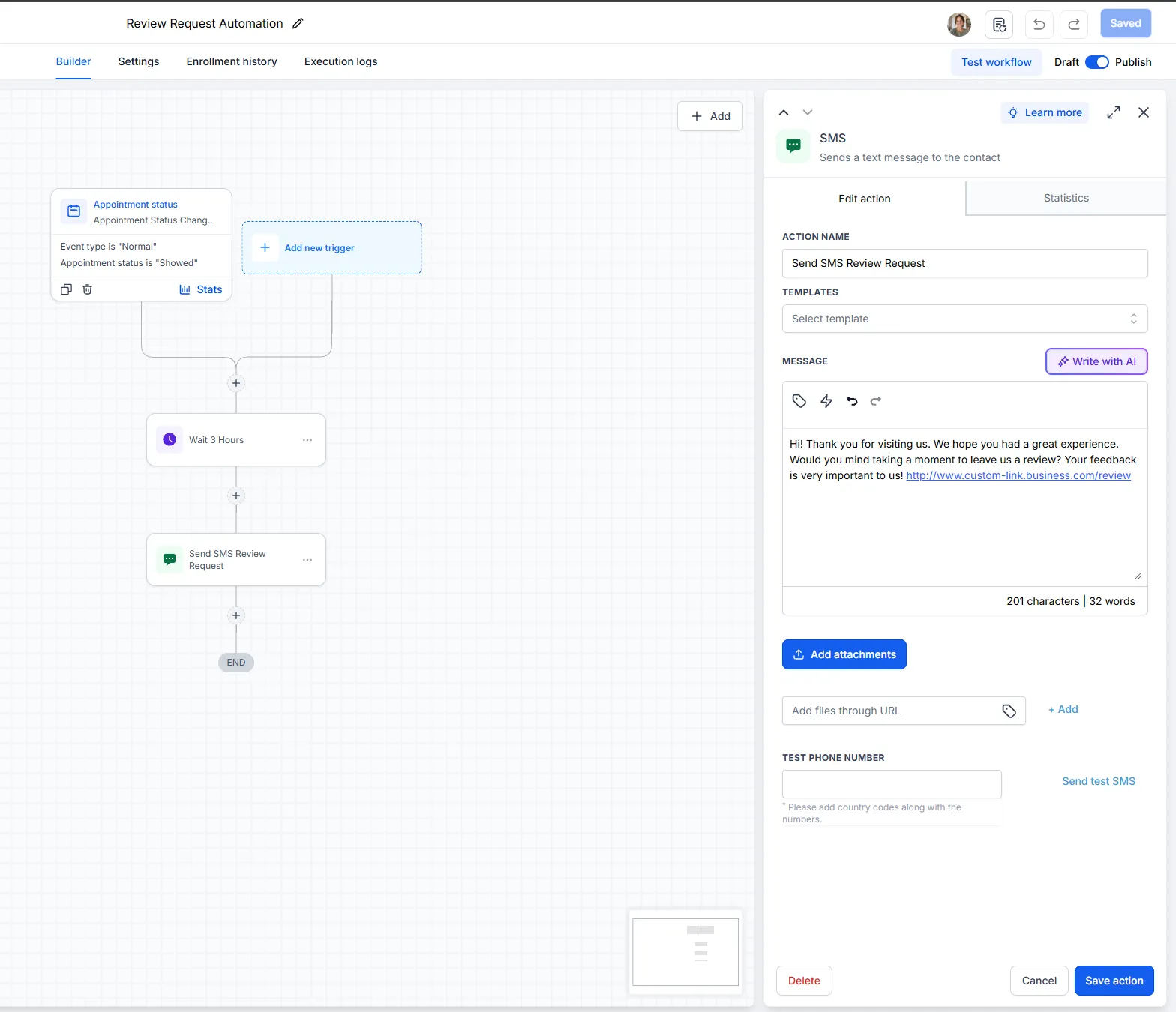
And no, you can’t only ask the happy ones. Ask everyone, consistently, and the maths takes care of itself, because most people who bother are the pleased ones.
Publish it
Section titled “Publish it”The step people forget: publish the workflow. A workflow sitting in draft is a very tidy piece of nothing.
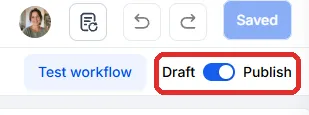 For more on how workflows behave once live, see Workflows and automations.
2. Choose how the AI replies
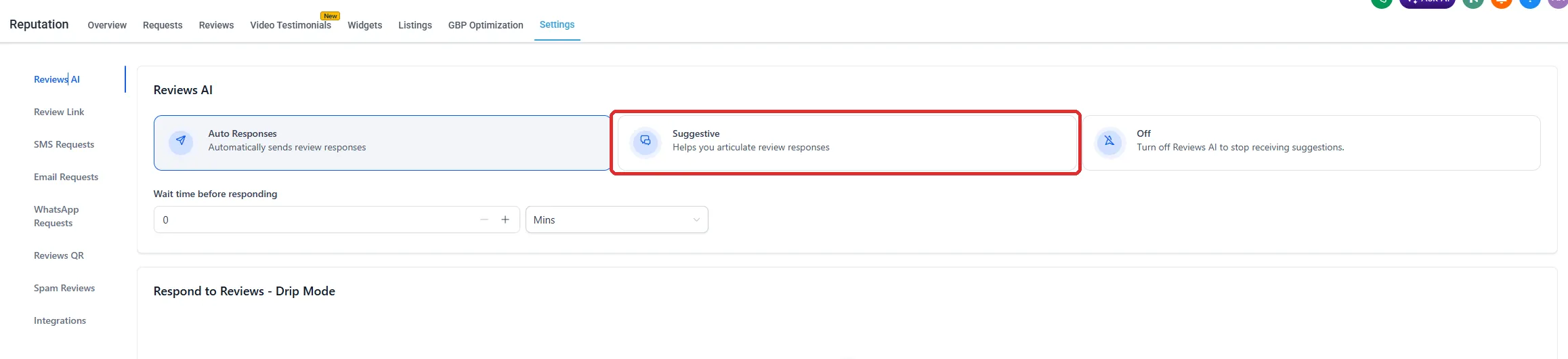
Section titled “2. Choose how the AI replies”With Google connected, every review lands in the platform — no more finding out about a review three weeks late. Reviews AI can then help you respond, and it has two modes, set under Reputation → Settings → Reviews AI:
| Mode | What happens |
|---|---|
| Suggestive | The AI drafts a reply; nothing goes out until you read it and post it. |
| Auto Responses | The AI posts replies itself, within rules you set. |
Replying well
Section titled “Replying well”For five-star reviews, a warm, specific thank-you. Replying matters even when the review needs nothing fixed.
For the rough one — and every business gets one eventually — the AI gives you the calm first draft: it acknowledges, doesn’t argue publicly, and moves the conversation offline. Read it, adjust it, sleep on it if you need to, then post. A gracefully handled bad review persuades readers more than another five-star does; it shows them who you are when it counts.
The flywheel
Section titled “The flywheel”Step back and see the shape of it. Appointments trigger review asks. Reviews build your Google presence. Your presence brings enquiries. Your AI team answers and books them. Bookings become appointments, which trigger review asks.
That’s not a feature list — that’s a flywheel, and every week it turns, it turns a little easier. Watch it show up in your weekly check-in.