Import and clean your contacts
Your contact list is the asset every other feature feeds on. Your AI answers these people, your campaigns go to these people, your pipeline tracks these people. The quality of this list quietly sets the ceiling on everything else — so here’s the strongest warning in this help centre: do not pour a messy list into a clean system.
Right now your customers probably live in four places: your phone, a spreadsheet, your email history and your social followers. We’re bringing them into one record each, with history attached. The order matters.
1. Export from wherever they live
Section titled “1. Export from wherever they live”Get your existing list out as a spreadsheet file — a CSV. Most systems and phone accounts have an export option; if yours has you stuck, contact support — we have guides for the common ones.
2. Clean the list before it goes in
Section titled “2. Clean the list before it goes in”Do the cleaning in the spreadsheet, where fixing things is easy. Twenty minutes, four passes:
- Merge duplicates. The same person entered twice with two spellings becomes one row.
- Delete the dead weight. The supplier from 2019, the number with no name you’ve never texted. If they’d be confused to hear from your business, they don’t belong in your business’s list.
- Fix formats. Phone numbers with country codes done consistently; emails without typos.
- Fix the names. Whatever’s in the name field is what every future message will call them. A contact saved as “sarah gym enquiry” needs to become Sarah before she gets an email starting “Hi sarah gym enquiry”.
3. Import and map your columns
Section titled “3. Import and map your columns”-
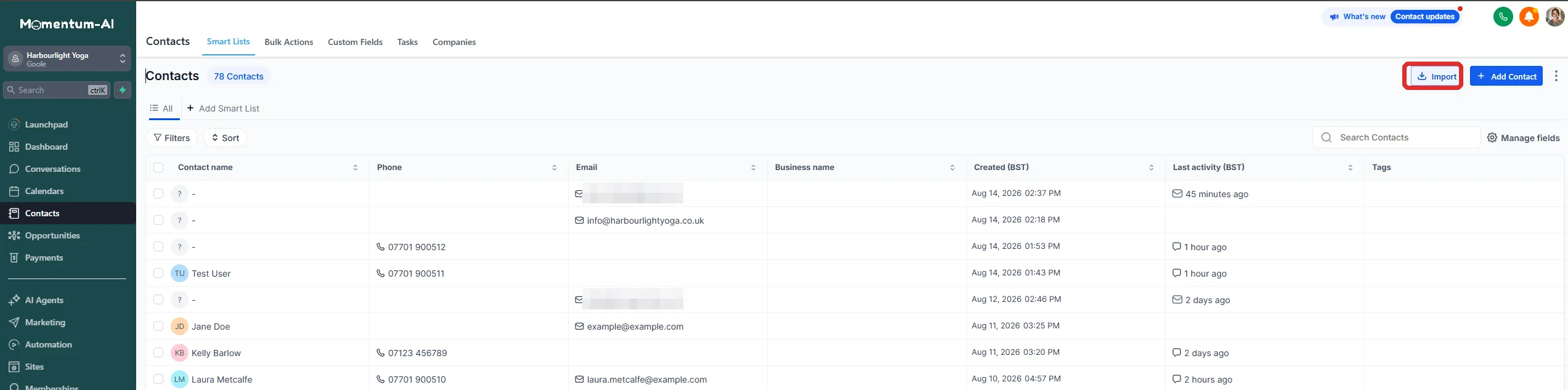
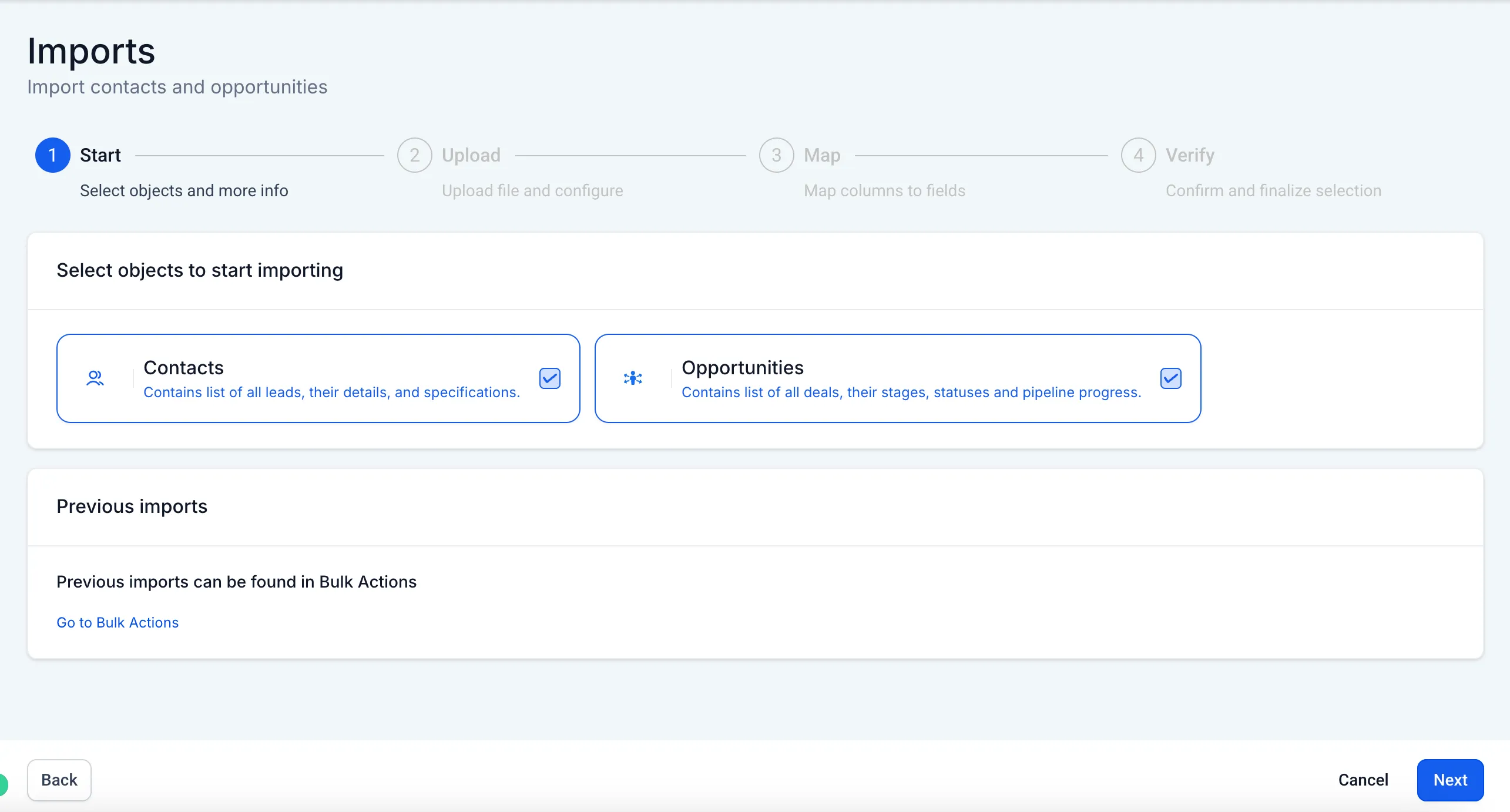

Go to Contacts → Import and upload your CSV.
-

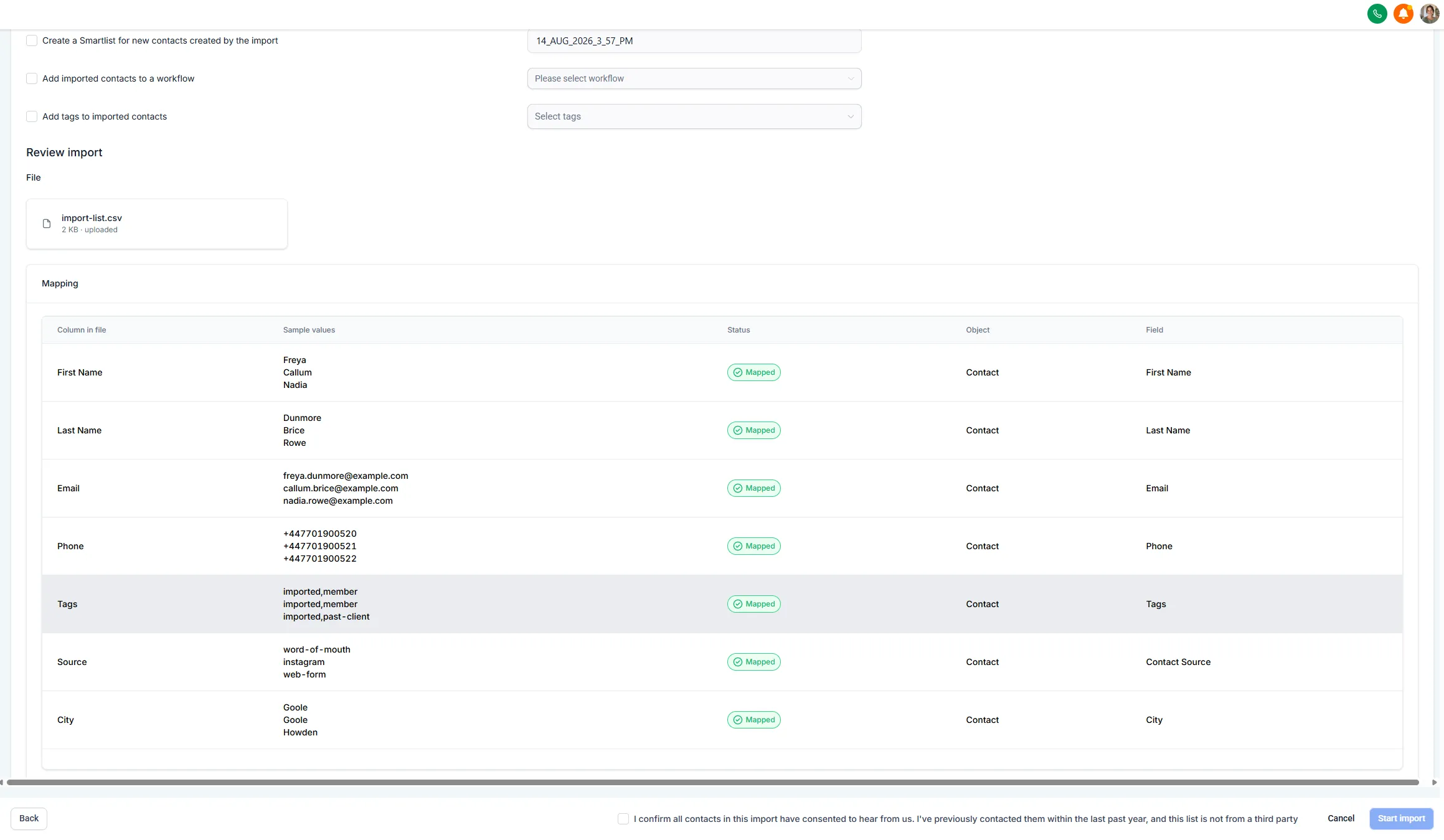
The platform asks you to match your spreadsheet columns to its fields: this column is first names, this one is phones, your Tags column maps to Tags. Take it slowly — it’s one screen.
-
Check the preview before you confirm.
-
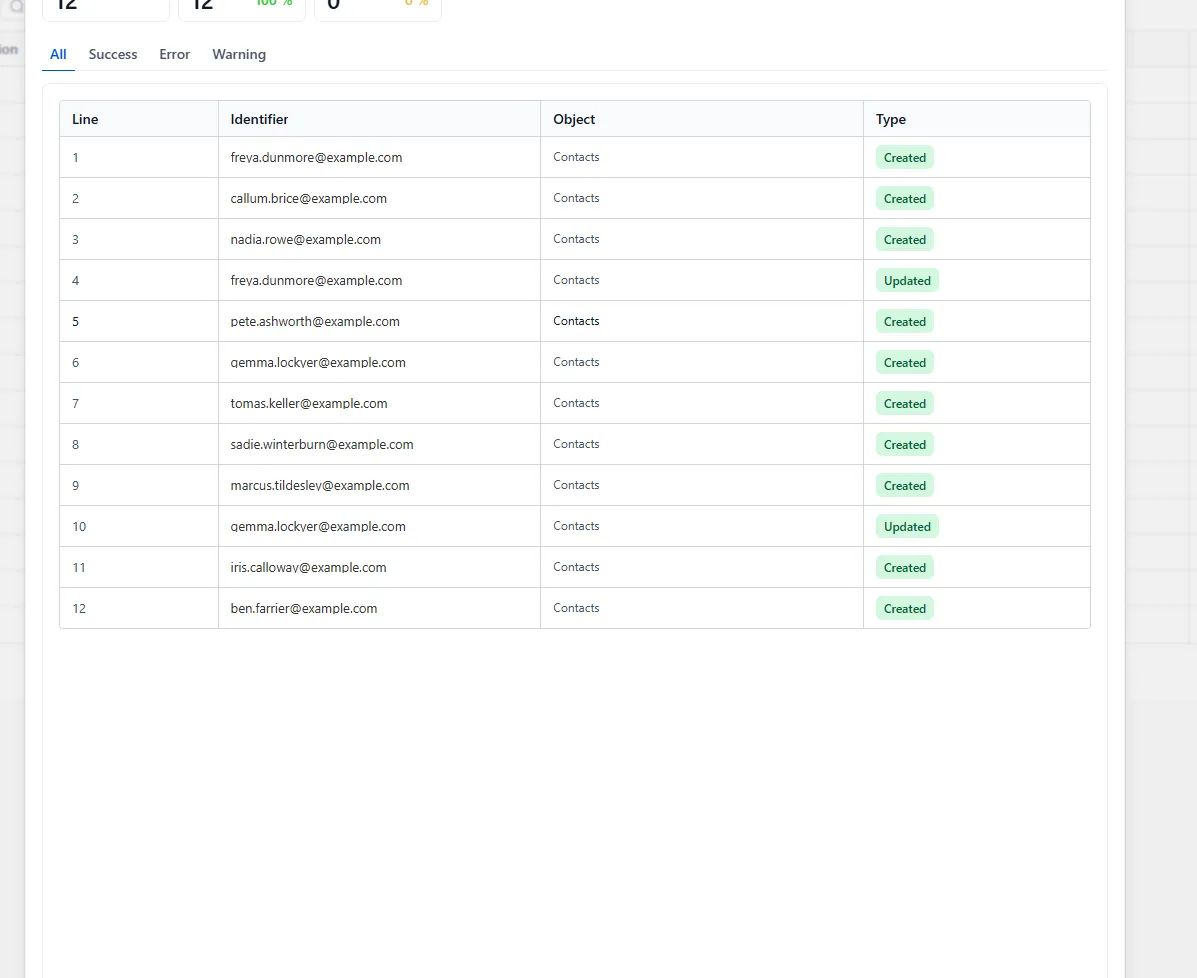
Afterwards, open the import status: rows that match an existing contact by email come through as Updated rather than erroring, so review those matches rather than waving them through.
4. Tag with intent
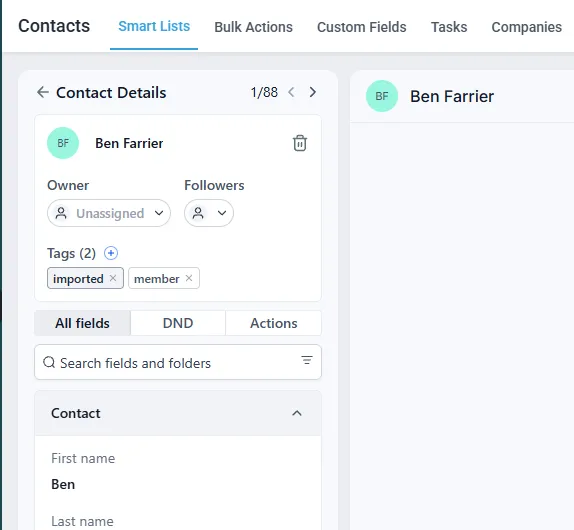
Section titled “4. Tag with intent”A tag is just a label, and a contact can have several. Tag everyone in this first import with something like imported, plus what they are: past-client, member, old-enquiry. From now on, the system tags new people automatically by how they arrived — missed call, web form, Instagram.
5. Build a smart list
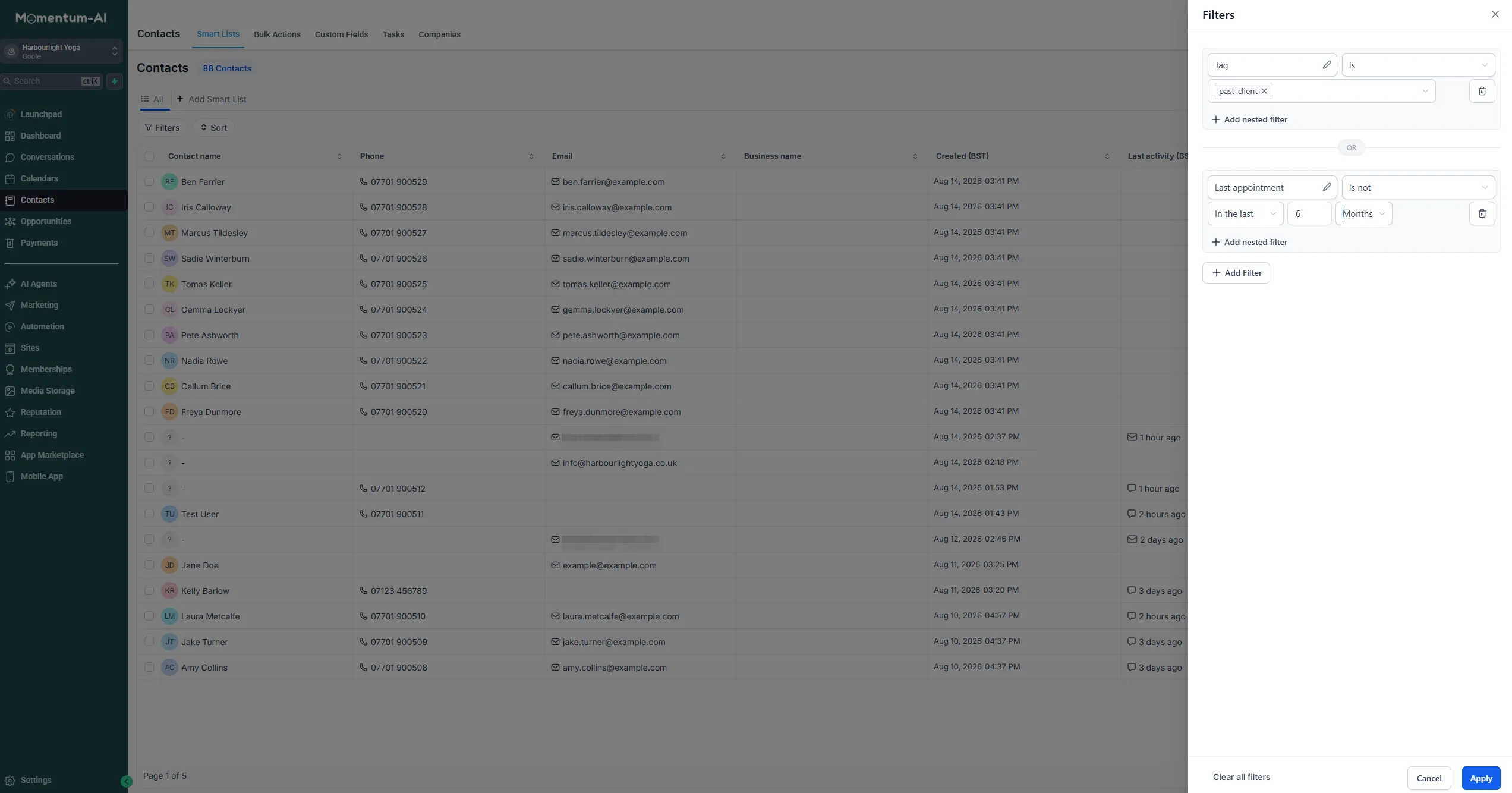
Section titled “5. Build a smart list”A smart list is a saved search that updates itself. Build one for everyone tagged past-client with no appointment in the last six months, and you’ve got a win-back audience that maintains itself forever — people drop off the moment they rebook. Lists like this are what make an email or SMS broadcast feel personal instead of blasted.
What a contact record now holds
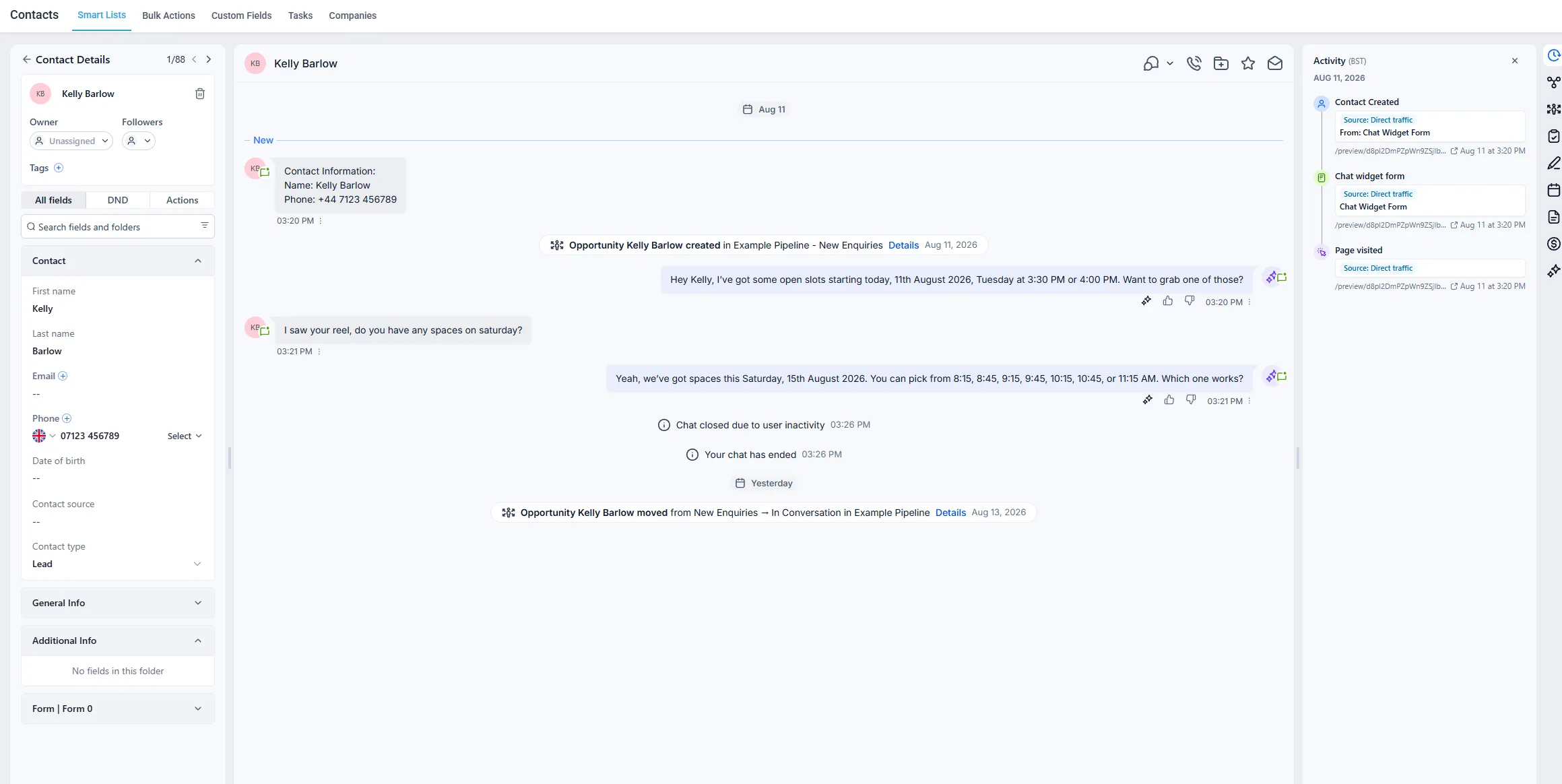
Section titled “What a contact record now holds”Click into any one contact: every conversation on every channel, every appointment, every tag, every note — one screen. When someone rings and says “I messaged you a while back”, you, or your AI, will actually know. That’s the difference between a list and a memory.
With the cleaning and the import done, you’ve ticked one of the big items on your first-week game plan. Next: the inbox where all of these people talk to you.